Connect Claude
Add Scout to Claude as a custom connector. You get 50+ Scout tools in Claude on the web, on desktop, and on your phone. Enter one URL, then sign in with your Scout account.
Replaces the older Claude Desktop setup
Claude connects to remote MCP servers directly. Use this page instead of mcp-remote and claude_desktop_config.json. CLI clients still use mcp-remote; see Authentication.
Before you start
| You need | Details |
|---|---|
| A Scout account | Trial or paid tier, with MCP enabled |
| Claude on Pro, Max, Team, or Enterprise | Custom connectors are on these plans |
| A browser | The flow takes about two minutes |
On Team and Enterprise, the organization Owner adds the connector once. See Team and Enterprise. Members start at Step 3.
Step 1 — Open your Connectors settings
- Go to claude.ai and sign in.
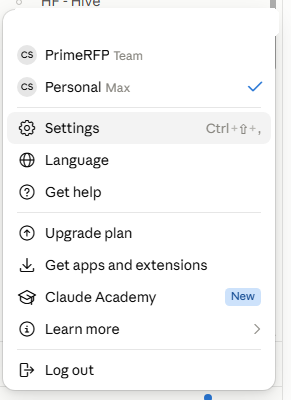
- If you have both a Personal and a Team workspace, pick the workspace you want Scout in.
- Click your name in the lower-left corner, then Settings (shortcut:
Ctrl+Shift+,). - In the left sidebar, under Customize, choose Connectors.
- Open the Claude app.
- Open Settings (macOS:
⌘,· Windows:Ctrl+,). - Choose Connectors.
The web and desktop apps share the same Claude account. Add the connector in one place and it appears in the other.
Step 2 — Add the Scout connector
-
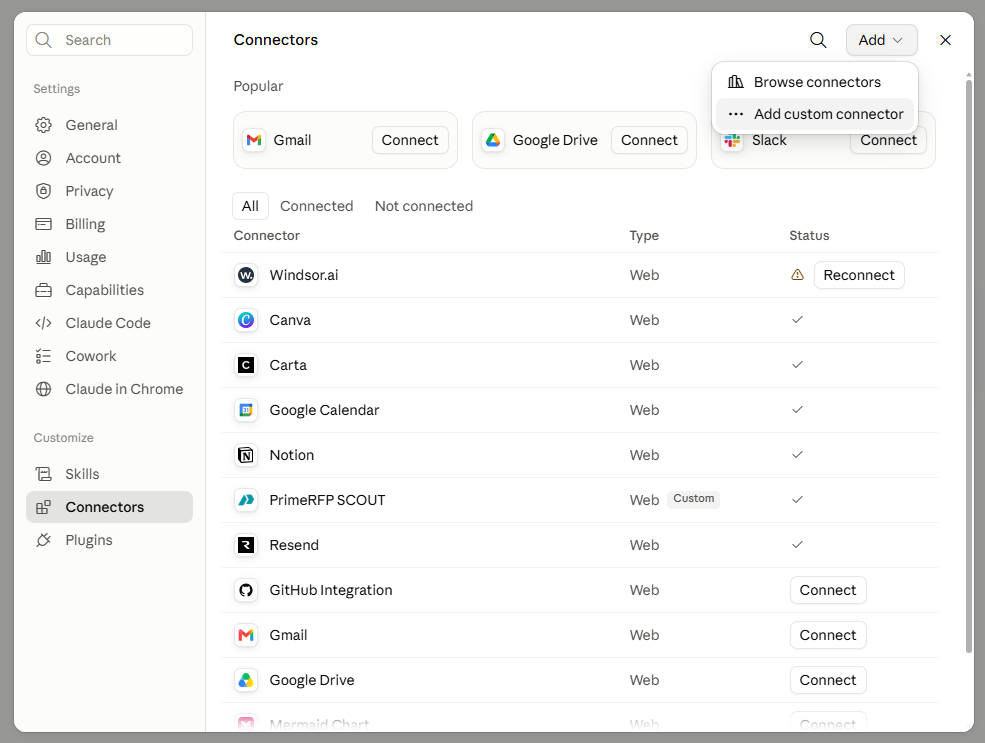
Click Add in the top right, then Add custom connector.
-
Fill in the two fields. Name is the label in your connectors list.
Field Value Name PrimeRFP ScoutURL https://mcp.primerfp.com/mcp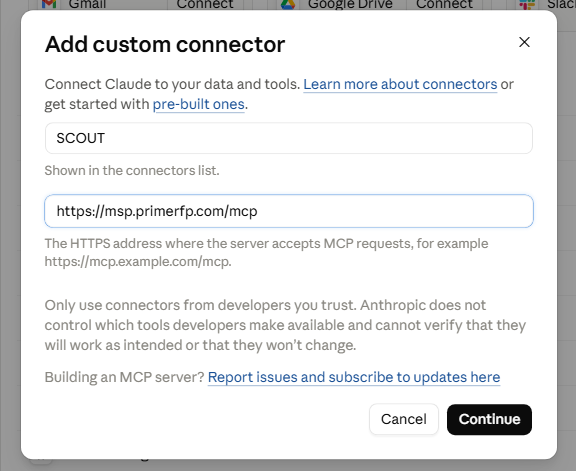
-
Click Continue.
Scout shows in the list as Type Web with a Custom badge.
Step 3 — Sign in
After Continue, Claude may open a Scout sign-in window.
- Sign in with the email and password for your Scout account.
- Review the access Claude is requesting: reading intelligence (
scout:read), generating reports (scout:reports), and emailing reports to you (scout:email). Then approve. - When you return, Status on the Scout row is a checkmark. If it still says Connect, click it and sign in.
Popup blockers
If nothing opens, allow popups for claude.ai and try Connect again.
Your seat is tied to the Scout account you sign in with. Each person on your team connects with their own credentials.
Step 4 — Turn Scout on in a chat
Claude enables connectors per conversation:
- Start a new chat.
- Click the + button at the lower left of the message box.
- Choose Connectors and switch PrimeRFP Scout on.
Step 5 — Confirm it works
Ask Claude:
Claude should name your tier and remaining limits. Then ask:
Use Scout to show me VA contracts in NAICS 541519 coming up for recompete
in the next 12 months, with the incumbent and the obligated value.
On your phone
Add the connector once on web or desktop. It follows your Claude account to iOS and Android. In a mobile chat, tap the + button in the message box, choose Connectors, and switch PrimeRFP Scout on.
Team and Enterprise admins
An Owner adds Scout once. Each member clicks Connect and signs in with their own Scout account.
- Open Admin settings → Connectors.
- Click Add in the top right, then Add custom connector.
- Name it
PrimeRFP Scoutand enterhttps://mcp.primerfp.com/mcp. - Click Continue.
Members then open Settings → Connectors, find PrimeRFP Scout marked Custom, and click Connect. Sign in with your own Scout credentials. Seats are per person.
Troubleshooting
| What you see | What to do |
|---|---|
| No Add custom connector button | Open the Add menu at the top right of Connectors. Custom connectors run on Pro, Max, Team, and Enterprise. On Team or Enterprise, your Owner adds the connector from Admin settings. |
| Nothing happens when you click Connect | Allow popups for claude.ai, then click Connect again. |
| Claude says it has no Scout tools | Switch the connector on for that conversation: + → Connectors → PrimeRFP Scout. |
| A tool returns "not authorized" | Your session expired. Click Disconnect on the Scout card, then Connect, and sign in again. |
| The wrong Scout account is connected | Disconnect the card, sign out at primerfp.com, then connect again. |
| A broad query times out | Narrow the query to one agency, one NAICS code, and one time window, then ask again. |
If you still need help, email mcp-support@primerfp.com with your Scout account email and what you saw on screen.
What to ask next
- Available Tools: the full tool reference
- Tiers & Limits: what your plan includes
- Authentication: API keys and the
mcp-remotebridge for CLI clients